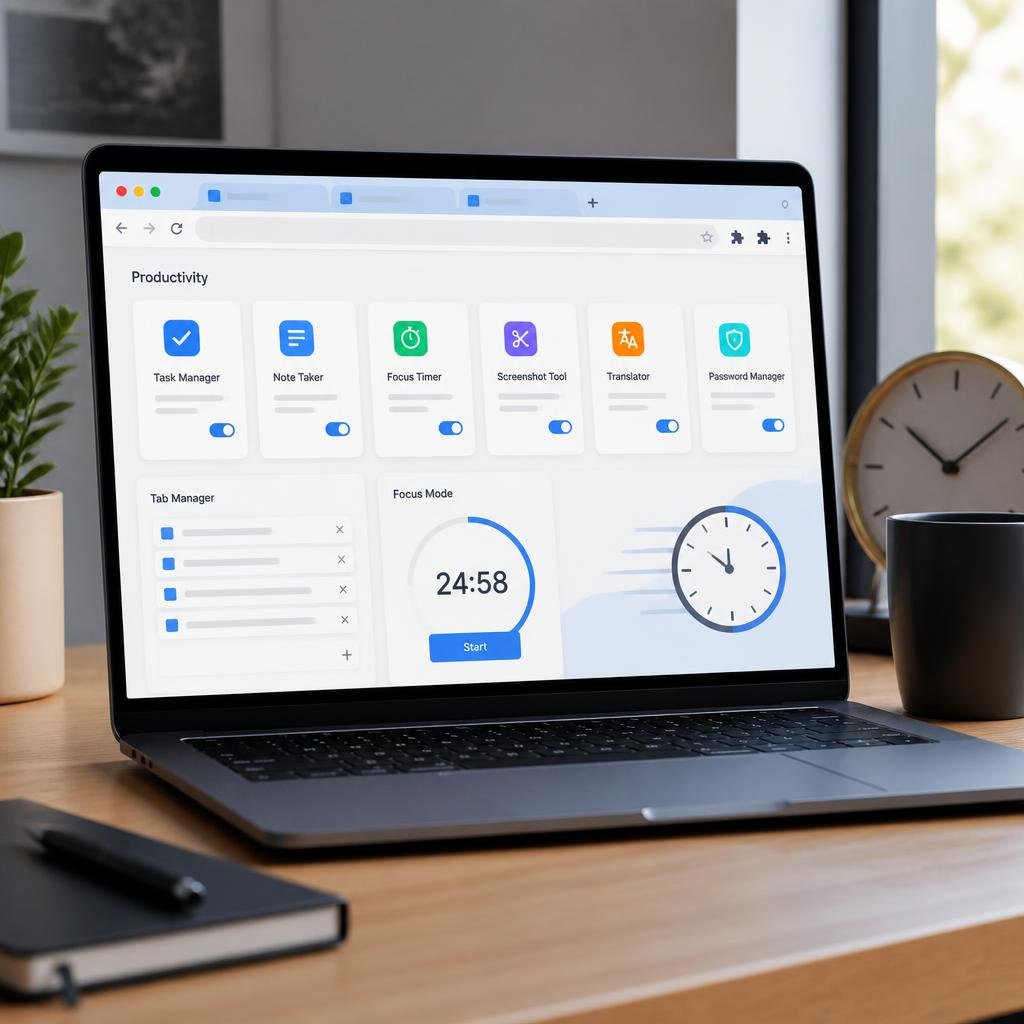
Looking for the best Chrome extensions for productivity that can actually save you time? The right extensions can help you manage browser tabs, reduce distractions, improve writing, organize tasks, and make everyday work more efficient. Instead of installing dozens of tools, this guide focuses on seven practical Chrome extensions that solve common productivity problems.
7 Best Chrome Extensions for Productivity That Save You Time
How much time do you lose switching between tabs, rewriting the same messages, searching for saved information, or getting distracted by websites?
For many people, the browser is where most of their work happens. You research, write emails, manage tasks, watch tutorials, communicate with clients, and browse the web—all from Chrome.
The problem is that Chrome can also become a productivity trap.
Too many tabs create clutter. Repetitive typing wastes time. Distracting websites break your concentration. And important information can disappear somewhere among dozens of open pages.
That’s where the best Chrome extensions for productivity can help.
Chrome extensions add extra features to your browser and can turn Chrome into a more useful workspace. Google describes extensions as tools that can add features to existing web apps, provide relevant information, notifications, and shortcuts. (Google Support)
But you don’t need 30 extensions.
In fact, installing too many can create another problem: more clutter, more permissions to manage, and potentially more browser overhead. The better strategy is to choose extensions based on the specific problems you have.
Here are 7 useful Chrome extensions that solve different everyday productivity problems.
Quick Answer: Which Chrome Extensions Are Worth Using?
If you want the short version:
These Chrome productivity extensions each solve a different everyday browsing problem, from managing tabs to tracking work time.
| Extension | Best For | Why It Helps |
|---|---|---|
| OneTab | Too many tabs | Organizes open tabs |
| Bitwarden | Passwords | Faster, safer logins |
| Grammarly | Writing | Helps improve everyday writing |
| Todoist | Tasks | Turns ideas and webpages into tasks |
| Loom | Explanations | Replaces lengthy written instructions |
| Clockify | Time tracking | Shows where your working time goes |
| uBlock Origin Lite | Distracting ads | Makes browsing cleaner |
The right extension depends on where you’re losing the most time.
1. OneTab — Best Chrome Extension for Too Many Tabs
Do you regularly have 20, 30, or even 50 browser tabs open?
If yes, OneTab may be one of the simplest productivity improvements you can make.
For people researching online, OneTab is one of the best Chrome extensions for productivity because it helps keep multiple tabs organized.
OneTab converts your open tabs into a single organized list. You can later restore individual tabs or bring them all back at once. Its Chrome Web Store listing currently shows 2 million users, a 4.4 rating, and an update in July 2026. (Chrome Web Store)
How does OneTab save time?
Imagine you’re researching an article and have 25 useful pages open.
Normally, you might:
- Search through tabs to find a specific page
- Accidentally close something important
- Keep everything open for days
- Lose track of what each tab was for
With OneTab, you can convert those tabs into a list and return to them later.
The developer also says consolidating tabs can reduce memory usage by up to 95%, although actual results will vary depending on your browser session and the pages you’re using. (Chrome Web Store)
Who should use OneTab?
It’s especially useful for:
- Students
- Researchers
- Bloggers
- Developers
- Freelancers
- Anyone who researches multiple websites
Free or paid?
OneTab is currently available as a free Chrome extension. (Chrome Web Store)
Verdict: If tab overload is your biggest browser problem, start here.
2. bit warden — Best for Faster Password Management
How much time do you spend entering passwords or resetting forgotten ones?
Password management isn’t usually considered a productivity problem, but it can create plenty of unnecessary friction.
bit warden lets you store passwords and passkeys, generate strong passwords, and autofill login information.
Its current Chrome Web Store listing shows 7 million users, a 4.3 rating, and version 2026.7.0 updated July 23, 2026. (Chrome Web Store)
How does bit warden save time?
Instead of remembering dozens of passwords, you can use one password manager to organize them.
For example, instead of manually entering:
- Email password
- Hosting password
- Social media password
- Work account password
- Shopping account password
you can let the extension autofill the appropriate login.
That doesn’t just save keystrokes—it can also reduce the temptation to reuse the same password across multiple websites.
Is bit warden free?
bit warden offers a free version, while additional features are available through paid plans. (Chrome Web Store)
Who should use it?
Almost anyone with multiple online accounts can benefit, particularly:
- Freelancers
- Business owners
- Developers
- Students
- Remote workers
Verdict: A productivity tool that also improves password-management habits.
3. Grammarly — Best for Everyday Writing
Do you spend too much time checking emails, messages, or articles before sending them?
For anyone who writes emails, articles, or messages every day, Grammarly can be a useful addition to a Chrome productivity toolkit.
Writing small mistakes can take surprisingly long to fix manually.
Grammarly provides writing assistance directly inside supported websites and applications.
It’s useful when you’re writing:
- Emails
- Blog posts
- Client messages
- Social media posts
- Online applications
- Documents
How can it save time?
Instead of stopping your workflow every few sentences to check grammar or wording, writing assistance can highlight potential issues while you’re working.
For someone who writes online every day, that can reduce repeated editing.
Who should use Grammarly?
It’s particularly useful for:
- Bloggers
- Students
- Freelancers
- Content writers
- Professionals who communicate in English
Free or paid?
Grammarly has a free offering, with additional features available through paid plans.
Verdict: If writing is a major part of your work, this type of extension can remove a lot of small interruptions.
4. Todoist — Best for Turning Ideas Into Tasks
Ever visit a webpage and think, “I’ll remember this later”?
And thAmong the best productivity extensions for Chrome, Todoist stands out for users who frequently turn ideas and webpages into tasks.en forget about it?
That’s where a task-management extension can be useful.
Todoist lets you capture tasks from your browser and organize them into projects and lists.
For example, while researching a website you might realize:
“I need to write an article about this.”
Instead of opening another app and manually creating a task, you can capture it while you’re already browsing.
How does this save time?
The biggest benefit isn’t typing faster.
It’s reducing context switching.
You don’t have to:
- Stop browsing.
- Open your task manager.
- Create a task.
- Add the information manually.
- Return to your research.
You can capture the idea and continue working.
Who should use Todoist?
- Students
- Freelancers
- Bloggers
- Project managers
- Remote workers
- Anyone managing multiple tasks
Verdict: Great for people who constantly collect tasks and ideas while browsing.
5. Loom — Best for Explaining Something Quickly
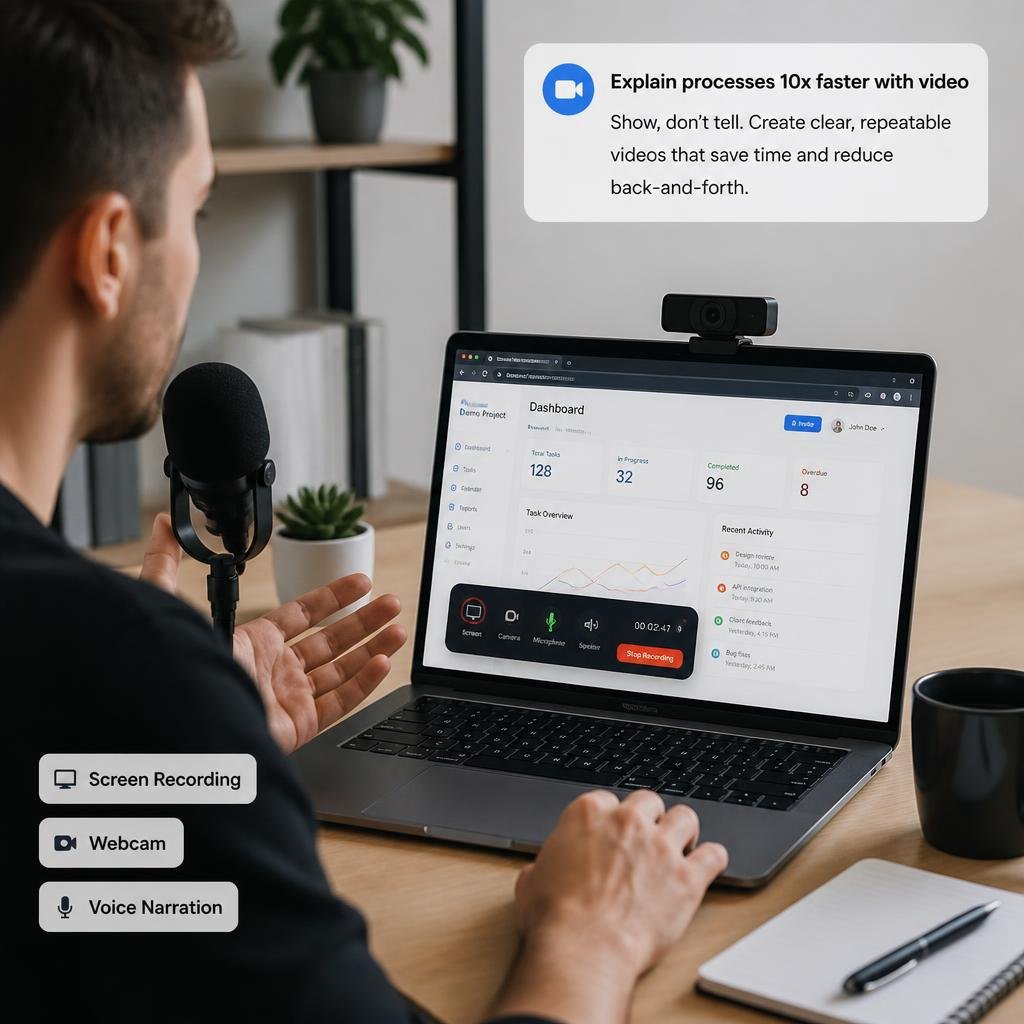
Have you ever spent 15 minutes writing instructions that could have been explained in 2 minutes?
This is where Loom becomes useful.
Loom lets you record your screen and create a video explanation instead of writing a long message.
For example, imagine a client asks:
“How do I update this page?”
You could write:
Open the dashboard → click Settings → select Pages → choose the page → edit the section → save changes…
Or you could record your screen and demonstrate it.
Why can this save time?
It’s particularly useful when:
- Explaining software
- Training someone
- Giving feedback
- Showing a website problem
- Demonstrating a process
- Communicating with remote teams
Current 2026 productivity roundups continue to identify Loom as a useful screen-recording option for asynchronous communication. (PickMySoft)
Who should use Loom?
It’s especially useful for:
- Freelancers
- Developers
- Designers
- Teachers
- Customer-support teams
- Remote workers
Verdict: If you repeatedly explain the same processes, screen recording can be much faster than writing instructions.
6. Clockify — Best for Understanding Where Your Time Goes
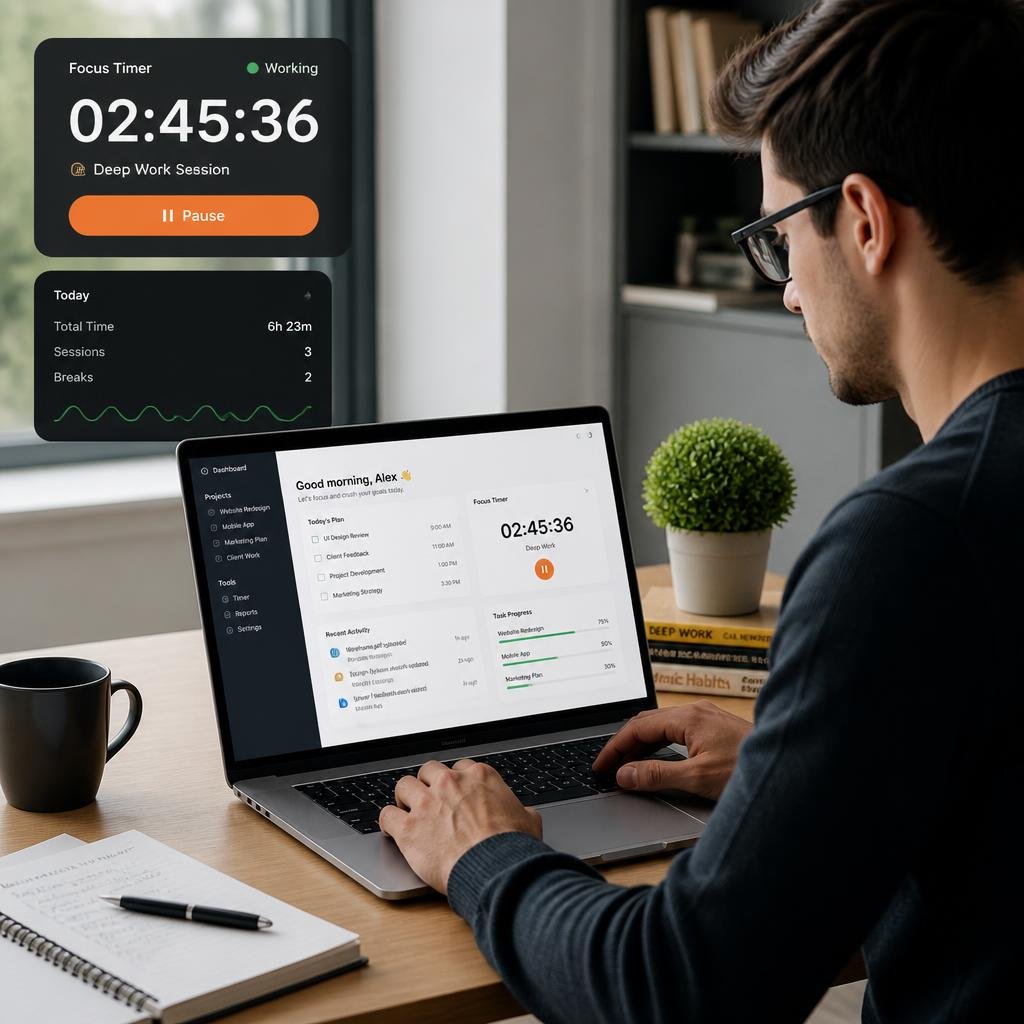
Do you know exactly where your working hours disappear?
If the answer is no, time tracking can be surprisingly useful.
Clockify provides a browser extension that lets you start and stop timers while working.
You can use it to track activities such as:
- Client work
- Writing
- Research
- Meetings
- Development
- Administration
Current 2026 reviews describe the extension as useful for starting time tracking directly from supported productivity tools. (PickMySoft)
Why does time tracking improve productivity?
You can’t easily improve something you never measure.
After tracking your work for a week, you might discover:
Client work: 18 hours
Research: 9 hours
Email: 6 hours
Social media: 7 hours
Unplanned browsing: 5 hours
That information can help you decide where your biggest productivity problem actually is.
Who should use Clockify?
Especially:
- Freelancers
- Consultants
- Agencies
- Remote workers
- Students
- Anyone trying to understand their work habits
Verdict: Best for people who want to measure productivity instead of simply guessing.
7. uBlock Origin Lite — Best for a Cleaner Browsing Experience
Do ads and unnecessary page elements make websites harder to use?
uBlock Origin Lite is designed to block unwanted content such as ads and trackers using Chrome’s current extension architecture.
It appears on current 2026 productivity-extension lists as a free option for ad blocking and cleaner browsing. (Unlike.net)
How can an ad blocker save time?
Think about a typical article page.
You may encounter:
- Pop-ups
- Auto-playing elements
- Multiple advertisements
- Distracting banners
- Tracking-related requests
A cleaner page can make it easier to find the information you actually came for.
Who should consider it?
It’s particularly useful for people who spend a lot of time:
- Reading articles
- Researching online
- Studying
- Comparing products
- Working with web-based tools
Verdict: Useful if distracting web content is slowing down your browsing experience.
Which Chrome Extension Should You Install First?
You don’t need all seven.
The best choice depends on your biggest problem.
If you have too many tabs:
Install OneTab.
If you waste time managing passwords:
Try bit warden.
If you write constantly:
Try Grammarly.
If you forget tasks and ideas:
Try Todoist.
If you repeatedly explain things:
Try Loom.
If you don’t know where your working hours go:
Try Clockify.
If distracting web content bothers you:
Try uBlock Origin Lite.
This problem-first approach is more useful than installing every productivity extension you find.
Are Chrome Extensions Safe to Use?
They can be useful, but you should not automatically trust every extension.
An extension may request permissions that give it access to parts of your browsing experience. That’s why you should check the developer, permissions, reviews, update history, and privacy information before installing an extension.
Google’s Chrome Web Store provides extension information and reviews, and Google specifically warns users against fake reviews and recommends using the store’s review and support mechanisms. (Google Support)
A simple safety checklist
Before installing an extension:
- Check the developer.
- Look at the requested permissions.
- Check when it was last updated.
- Read recent reviews.
- Check the developer’s privacy policy.
- Avoid extensions that request excessive access without a clear reason.
- Remove extensions you no longer use.
More extensions don’t automatically mean more productivity.
How Many Chrome Extensions Should You Install?
There isn’t a magic number.
Instead of installing 20 extensions because a blog recommended them, start with one or two that solve your biggest problems.
For example:
Too many tabs + poor task organization?
Start with OneTab + Todoist.
Writing + password management?
Try Grammarly + bit warden.
Freelancing + client communication?
Try Clockify + Loom.
The goal isn’t to make your browser look powerful.
The goal is to remove friction from your daily workflow.
Final Verdict
The best Chrome extensions for productivity aren’t necessarily the newest or most complicated ones—they’re the tools that solve a problem you experience repeatedly.
The best Chrome extensions for productivity aren’t necessarily the newest or most complicated ones.
They’re the tools that solve a problem you experience repeatedly.
If your browser is full of tabs, OneTab can bring order. Bitwarden can simplify logins when passwords start slowing you down. For writers, Grammarly can make editing faster, while Todoist is useful for capturing tasks and ideas. Loom can replace lengthy explanations, while Clockify helps you understand where your time actually goes.
And if distracting web content is getting in the way, uBlock Origin Lite can make browsing cleaner.
The best strategy is simple:
Find your biggest productivity problem, install one extension that addresses it, and see whether it actually improves your workflow.
That’s much better than filling your browser with extensions you’ll never use.
Frequently Asked Questions
What are the best Chrome extensions for productivity?
Some useful options include OneTab for tab management, bit warden for password management, Grammarly for writing, Todoist for tasks, Loom for screen recording, Clockify for time tracking, and uBlock Origin Lite for cleaner browsing.
Which Chrome extension can save the most time?
It depends on your workflow. Someone with dozens of open tabs may benefit most from OneTab, while a freelancer may get more value from Clockify or Loom.
Are Chrome productivity extensions free?
Many productivity extensions offer free versions or free plans, although some advanced features require payment.
Do Chrome extensions slow down your browser?
Extensions can add some overhead, so installing only the extensions you actually use is a sensible approach. Some tools designed to reduce open tabs can potentially reduce resource use, but the effect varies by extension and browsing session.
Are Chrome extensions safe?
Not automatically. Check the developer, permissions, reviews, update history, and privacy policy before installing an extension.
Can I use Chrome extensions on other browsers?
Many Chromium-based browsers support Chrome extensions, but compatibility and installation methods can vary. Check the browser’s documentation before installing.
What is the best Chrome extension for students?
There isn’t one universal answer. OneTab can help with research tabs, Grammarly can assist with writing, and Todoist can help organize assignments and deadlines.